
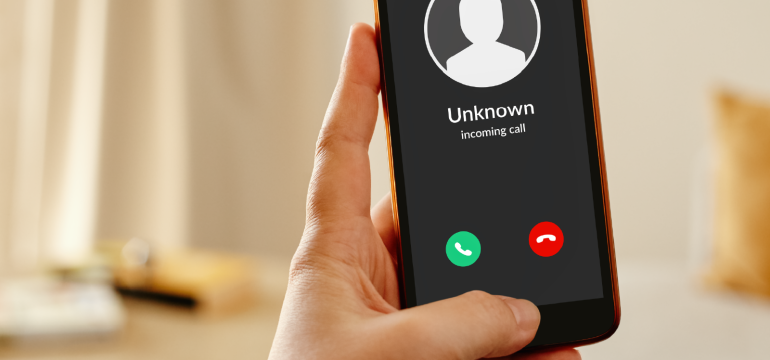
Robocalls and spam calls can turn from an occasional annoyance to an everyday headache. At Consumer Cellular, we know many of our customers rely on voicemail to catch missed calls. And we also know that frustration can mount when too many unwanted calls slip through.
The good news is that today’s smartphones come with powerful call screening tools designed to filter spam, block unknown callers and give you more control over who reaches you.
Whether you use an iPhone, Google Pixel, Samsung Galaxy, Motorola or other Android device, this guide walks you through the newest call screening features step by step so you can enjoy fewer interruptions, more peace of mind and less headaches.
What Is Call Screening?
Call screening is a built-in tool that helps your phone automatically:
- Identify callers
- Screen or silence unknown numbers
- Block spam and fraud calls
- Answer calls on your behalf using AI
- Provide a real-time transcript so you can decide whether to pick up
Each phone manufacturer handles call screening tools a little differently, but the goal is the same: helping you avoid unwanted calls without missing important ones.
Below, we’ll walk you through how to use call screening tools on:
- iPhone (iOS)
- Google Pixel (Google Call Screen)
- Samsung Galaxy
- Motorola devices with Google Assistant based screening
Let’s get started.
Call Screening Tools on iPhone (iOS)
Apple’s iPhone call screening tools help identify callers, silence unknown numbers and filter spam with ease.
Turn On Call Identification on iPhone
Your iPhone can identify callers using information from Apple Business Connect, supported carriers and supported apps.
How to enable Caller Identification:
- Open Settings
- Tap Apps
- Tap Phone
- Tap Call Blocking & Identification
- Turn on:
- Business Call Identification
- Any supported caller ID apps
Screen or Silence Unknown Callers
Apple iPhones offer a feature called Call Screening, which asks unknown callers to identify themselves before your phone rings.
To silence unknown callers on iPhone:
- Open Settings
- Tap Apps
- Tap Phone
- Tap Silence Unknown Callers and choose one:
- Never – Call screening off
- Ask Reason for Calling – Caller is prompted to state their name and reason
- Silence Unknown Callers – Unknown calls go straight to voicemail without ringing
To screen callers on iPhone:
- Open Settings
- Tap Apps
- Tap Phone
- Tap Live Voicemail and turn it on
Filter Unknown and Spam Calls
You can also filter calls into separate categories.
To enable call filtering on iPhone:
- Go to Settings
- Tap Apps
- Tap Phone
- Tap Call Blocking & Identification and turn on:
- Silence Junk Callers
Unknown and spam callers will be silenced, sent to voicemail and noted on your Recents list for easy identification.
Block or Unblock Specific Numbers
To block specific numbers on iPhone:
- Open the Phone app
- Tap Contacts or Recents
- Select the caller
- Tap Block Caller
To unblock:
- Open Settings
- Tap Apps > Phone
- Tap Blocked Contacts
- Tap Edit > Unblock or swipe right on the contact you want to unblock
Google Call Screen (Google Pixel and Some Android Models)
Google’s Call Screen is one of the most advanced AI-powered screening tools available. It uses Google Assistant to answer calls, ask the caller why they’re calling and transcribe their responses instantly.
What Google Call Screen Can Do
- Automatically screens calls not in your contacts
- Google Assistant answers and asks questions
- You see a live transcript on your screen
- You can answer, decline or send to voicemail
- Automatically blocks spam
- Has an option to save audio and transcripts
How to Turn On Google Call Screen
- Open the Phone app
- Tap the three-dot menu
- Select Settings
- Tap Call Screen
- Turn on Automatically screen calls
- Select your protection level:
- Maximum – Screens all unknown numbers
- Medium – Screens suspicious numbers
- Basic – Declines known spam only
Important Notes About Google Call Screen
- Calls from your contacts are never screened
- Call forwarding disables screening
- You can review transcripts later in Recents
Samsung Call Screening
Samsung smartphones offers two tools for call screening:
- Automatic Call Screen (AI-powered)
- Smart Call (spam detection and blocking)
Automatic Call Screen on Samsung
This works similarly to Google’s call screening version.
What Samsung Automatic Call Screen does:
- AI answers unknown calls
- Asks the caller to explain who they are
- Shows a live transcript
- Lets you decide to pick up, decline or reply with a quick message
How to turn on Samsung Automatic Call Screen:
- Open the Phone app
- Tap the three-dot menu
- Select Settings
- Go to Spam and Call Screen
- Tap Call Screen
- Choose your protection level (Maximum, Medium or Basic)
You can also save call audio/transcripts and select auto-delete options.
Samsung Smart Call and Spam Protection
Samsung Smart Call identifies suspected spam during the call and allows quick blocking.
To turn on Samsung Smart Call:
- Open Phone
- Tap the three-dot menu
- Tap Settings
- Select Block numbers
- Toggle on Block calls from unknown numbers
- Manage spam settings under Caller ID and spam protection
Motorola Call Screening (Google Assistant Based)
Many Motorola devices use Google’s screening system (similar to Google Pixel). Availability varies by model and year.
How Motorola Call Screening Works
- Google Assistant screens unknown callers
- Asks their name and reason for calling
- Provides a real-time transcript
- Hangs up automatically if it detects spam
- If it’s legitimate, your phone rings and shows the caller’s message
How to enable call screening on Motorola phones:
- Open the Phone app
- Tap the three-dot menu
- Select Settings
- Tap Spam and Call Screen
- Tap Call Screen
- Choose your preferred protection level
Even if your Motorola model doesn’t support full Call Screen, spam filtering options are still available under the Spam and Call Screen menu.
FAQs: Call Screening on iPhone and Android
Does call screening send every unknown number to voicemail?
Not always. On iPhone and Android, you can choose how aggressive the settings are, from asking callers to identify themselves to completely silencing calls.
Will call screening block important calls?
If a number is saved in your contacts, call screening features will not block or silence it.
Can I turn call screening off?
Yes. Every device allows you to disable screening or adjust the level of protection.
Does call screening work with Consumer Cellular service?
Absolutely. These are built-in device features, so they work with Consumer Cellular plans with no extra charge or setup.
Can I still use voicemail with call screening?
Yes. Calls that you screen, silence or decline will go to voicemail as usual.
Does Samsung use Google Call Screen?
Some Samsung models do, but most use Samsung’s own AI-powered screening system.
Do Motorola phones still support Google Call Screening?
Support varies by model. Many do, though newer models may rely on updated spam detection settings instead of full screening.
Stay in Control of Your Calls and More with Consumer Cellular
Call screening is one more way to enjoy a calmer, more empowered wireless experience. Whether you prefer iPhone or Android, these tools help block unwanted calls, reduce spam and protect you from scams.
At Consumer Cellular, we’re here to help you stay connected—and in control—with affordable plans, strong nationwide coverage and award-winning support you can count on.
Visit our Help page, explore our phone lineup or stop by your local Consumer Cellular store to get help setting up call screening on your device today.
© 2025 Consumer Cellular, Inc. Terms and Conditions subject to change. Terms and conditions apply. New service activation on approved credit. Cellular service is not available in all areas and is subject to system limitations. Plans shown include $5 credit for AutoPay and E-billing.
Source: 2025 ACSI® Survey of customers rating their own wireless service provider. ACSI and its logo are registered trademarks of the American Customer Satisfaction Index LLC. For more about the ACSI, visit www.theacsi.org.