
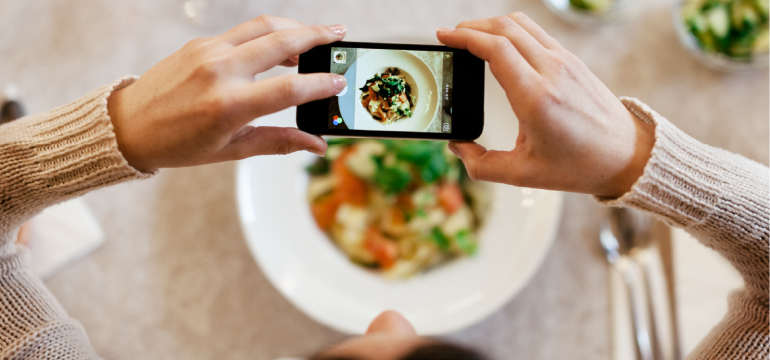
Smartphones Are the New Cameras
Here’s the spoiler: You don’t need an expensive camera to take professional photos anymore. Whether you’re snapping family portraits, shots to document your epic summer road trip or photos for social media, today’s smartphones can handle it all.
Both iPhones and Android smartphones (and pretty much all smartphones) come packed with powerful lenses and onboard editing tools—you just need to know how to use them.
Here are 10 easy tips on how to capture professional-quality photos with the phone already in your pocket.
1. Clean Your Lens (It Really Matters)
Before you take a single photo, wipe your camera lens. Pocket lint, fingerprints or smudges can make your pictures look blurry or hazy.
Use a soft microfiber cloth, a lens wipe or the corner of your shirt in a pinch. You’ll be amazed at the difference a clean lens makes.
2. Turn On Gridlines for Perfect Framing
Both iPhone and Android smartphones have a grid option that divides your screen into thirds. This helps you use the “rule of thirds”—a simple trick photographers use to make pictures look more balanced and natural.
How to turn on gridlines:
- iPhone: Go to Settings → Camera → Grid → Toggle On
- Android: Open Camera → Settings → Grid Lines → Turn On
Try lining up the horizon or a person’s eyes along one of those lines to instantly improve your shot.
3. Use Natural Light Whenever Possible
Lighting makes or breaks a photo. The best light is soft, natural light—like what you get near a window or outside during the “golden hour” (right after sunrise or before sunset).
No matter the time of day, avoid harsh overhead lighting or your phone’s flash, which can flatten out faces and colors.
Pro Tip: On iPhone and Android, tap the screen where you want to focus, then slide your finger up or down to manually adjust brightness before snapping.
4. Learn Your Camera’s “Pro” or “Portrait” Mode
Many smartphones have built-in professional modes that let you fine-tune photos in real time. Here’s a quick guide:
| Feature | What It Does | Available On | Best For |
|---|---|---|---|
| Portrait Mode | Blurs background for depth-of-field effect | iPhone, Android | Portraits, pets, people |
| Pro Mode (Manual) | Adjusts ISO, shutter speed, white balance manually | Android (and iPhone apps like Halide) | Low-light, creative shots |
| HDR Mode | Balances bright and dark areas automatically | iPhone, Android | Outdoor or high-contrast scenes |
| Night Mode | Captures more light for dark environments | iPhone, Android | Evening shots, indoor photos |
Take a few test shots in each mode and you’ll quickly find what works best for your style.
5. Steady Your Shot
Even a tiny movement can blur your image. Keep your hands steady by bracing your elbows against your body or using both hands.
If possible, use a tripod or phone stand—even an inexpensive one makes a big difference. Or, set your phone on a stable surface and use the timer feature to avoid camera shake.
6. Zoom with Your Feet (Not the Screen)
Digital zoom often reduces image quality. Instead, when possible, move closer to your subject.
If you need to zoom in, look for phones that use optical zoom, which keeps images sharp. Optical zoom is available on many iPhone Pro and Samsung Galaxy models.
7. Try Different Angles
Sometimes the best photo isn’t taken straight on. Experiment with low angles, side views or even reflections for creative results.
Pro Tip: Hold your phone slightly above eye level for flattering portraits.
8. Edit Like a Pro—Right on Your Phone
Editing isn’t cheating. It’s polishing. Most smartphones have built-in editing tools that can make a huge difference when it comes to the final photo product.
Here are some quick on-phone editing tweaks that make photos pop:
- Adjust brightness and contrast
- Boost vibrance slightly (avoid overdoing saturation)
- Crop and straighten
- Use the “Vivid” or “Natural” filter sparingly
Pro Tip: For extra control, try free photo editing apps like Snapseed, Lightroom Mobile or VSCO.
9. Use Live or Burst Mode for Action Shots
Taking pictures of kids, pets or anything moving? Turn on Live Photos (iPhone) or Burst Mode (Android). These features capture multiple frames in seconds—so you can choose the sharpest moment later.
How to turn on Live Photos or Burst Mode:
- iPhone (Live Photos): Open Camera → Tap the Circle icon (at the top right of the screen) → When it’s yellow, LIVE will appear (in yellow) and Live Photos is On → Tap again to turn it Off (LIVE OFF will appear and the circle will have a diagonal slash through it)
- Android (Burst Mode): Open Camera → Press and hold the Shutter button → Camera now takes Burst Mode photos → Release to stop (Note: Some Android phones require swiping the Shutter button instead—try a long press or swipe, depending on your model)
10. Back Up and Share Your Masterpieces
Don’t lose your best shots. Back them up automatically to iCloud for your iPhone or Google Photos for your Android smartphone.
Then share your favorites straight from your phone to family or social media.
FAQs: How to Take Professional Photos with Your Phone
How can I make my phone photos look professional?
Focus on lighting, composition and editing. Use natural light, turn on gridlines and edit lightly for best results.
What is the best phone setting for professional photos?
Try Portrait mode for depth and Pro mode (if available) for manual control. Both help you achieve DSLR-style results.
Can I take professional photos on iPhone and Android?
Yes. Modern phones like iPhones, Samsung Galaxy and Google Pixel have advanced cameras that rival professional equipment.
What apps make photos look professional?
Try apps like Snapseed, Lightroom Mobile or VSCO for easy editing tools and professional-quality filters.
Should I use the phone flash?
Only if it’s dark and no other light source is available. Natural or indirect lighting will always look better than a harsh flash.
Start Snapping Like a Pro
With these 10 simple tips and techniques, you can transform everyday pictures into frame-worthy photos—all from your phone.
If your phone camera (or phone in general) isn’t performing like it used to, it might be time for an upgrade. Check out our wide selection of phones and affordable plans. It’s a win-win. You’ll get a device capable of capturing great photos and experience the savings that comes with being a Consumer Cellular customer.
Explore phones and plans today.
You Might Also Like
How to Use Video Calling on iPhone & Android – 2025 Guide
Road Trip Tech Essentials: What to Pack for Summer 2025
© 2026 Consumer Cellular, Inc.