


Acer
GrandPad
Release Date: January 2021

Interactive Guide
Videos
Companion App
Overview
Frequently Asked Questions
There are multiple ways. First, the Family Administrator and companions can bulk load photos using the GrandPad Central Family Admin website. From GrandPad Central, they can also setup direct feeds from a Facebook or Instagram account. The most popular way is to use the free GrandPad Companion application for all approved users, but anyone can also send pictures/videos in a text or email that would save to the GrandPad too.
The companion app user will get a notification on their device that a GrandPad user is calling them, allowing you to accept the call.
The GrandPad comes pre-loaded with Solitaire, Blackjack, Slots, FreeCell, Word Scramble, Spider Solitaire, Texas Hold’em, Hangman, Sudoku, Crossword, Wordsearch, TicTacToe, Four in a Row, Memory, Tiles, Hearts, and Bridge. As new games are loaded, they will automatically show up on the GrandPad. GrandPad users can also request that games be removed from the device.
GrandPad comes with 4G LTE configured, and with a subscription, there are no limitations on data usage. However, Wi-Fi can be utilized if needed.
To connect GrandPad to a Wi-Fi network, tap the “Help” button on the device’s home screen. Then, tap “More Info”, then “Tools”, and then “Wi-Fi”. Select the Wi-Fi network you wish to connect to, and enter the password (if applicable).
While connecting to Wi-Fi will help you use GrandPad in areas where you may not have a strong cellular signal, you still need to be connected to our network and use our monthly plan in order to use GrandPad apps like Internet browsing, music streaming, and voice and video messaging.
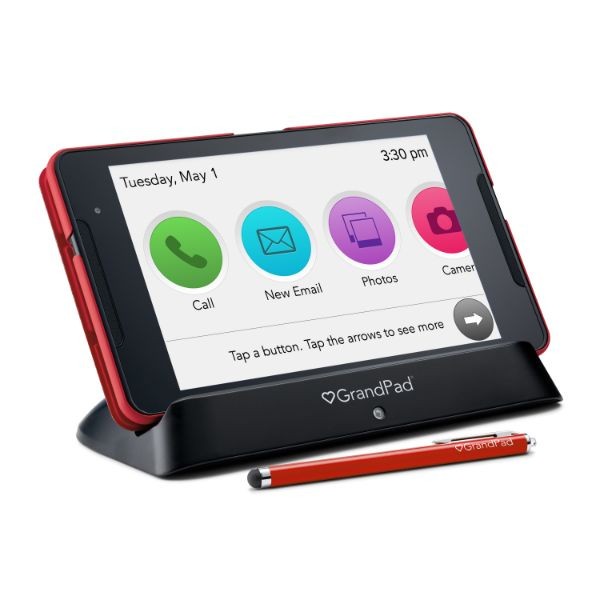
The GrandPad comes with a wireless charging cradle that can be plugged into a wall outlet. When not in use, simply place the GrandPad into the cradle, and it will begin charging automatically. Place the GrandPad lengthwise in the charging cradle. The light at the front of the charging cradle will glow white when the tablet is successfully charging. You will also see a message on the screen reading “Your GrandPad is Charging.” If no light appears, or the notification does not appear, try repositioning the GrandPad by rotating it. It can be removed at any time, and it will stop charging when it’s fully charged. When fully charged, the GrandPad should operate for 1-3 days.
All communications between the GrandPad and the internet are encrypted. No phone numbers or email addresses are viewable on the GrandPad. Only companions authorized by the Family Administrator can send messages or place calls to the GrandPad. Note that when using GrandPad's Internet browser, this activity is not taking place on our secure network, so the security of this activity is not guaranteed.
No. The GrandPad is customized so its user can enjoy it without entering any User ID’s, passwords, phone numbers, or email addresses.
Internet browsing can be enabled by the family administrator through GrandPad Central here. Start by going to the Control menu, then enable the Internet option. From here, you will also be able to save favorite websites, and manage the Internet experience by restricting browsing access to only Saved Websites for added security, or even turn off Internet browsing.
The GrandPad does not display a permanent battery percentage indicator. The device is meant to stay on the wireless charger stand when not being used. If you’d like to have a battery indicator display, you can call us at (888) 345-5509 and we'll be happy to enable this option for you.
After tapping the Music app, “Background Music” can be enabled by selecting it when playing Favorite Music or streaming a radio selection. Simply tap the “Background Music” button above the “Louder”/ “Quieter” buttons to turn this feature on or off. Once enabled, it will continue to play even if the “Music” app is closed unless you choose to turn it off.
Unlike regular voice calls, video calls are answered by your companion on their smartphone with the GrandPad companion app. The app does not automatically open when receiving a video call; instead, the companion must open the app manually when they receive the notification of an incoming call, which may cause a slight delay.
The GrandPad cannot be used for this type of call or text.
GrandPad Central is an administrative website to help manage the GrandPad device remotely by configuring preferences, adding contacts, and adding or removing content. In addition, when a GrandPad is ordered, a family administrator is established. The family administrator will invite other family members and friends to be part of the family circle as companions, allowing them to communicate with the GrandPad user. They will also use the GrandPad Central Admin Website to add other contacts like a pharmacy or a doctor to make it a tap by picture for the GrandPad user.
In addition to adding contacts, you can pre-select the users level of Internet access, and bulk upload photos that will show up on the GrandPad and optionally on every family member’s companion app, as well. You can get statistics on the usage of the GrandPad user to make sure they are active and having fun. Finally, the site can be used to add or remove the core applications:
- Calling
- Video Calling
- Internet Browsing
- Photos
- Camera
- Weather
- Music
- Games
- Lookup
The companion application is for the rest of the family and chosen companions. It’s free and is available for Apple and Android phones and tablets. The GrandPad app lets you easily send pictures and videos to the GrandPad in your family. The easiest way to get it is to get an invitation from the family admin for the GrandPad. The invite can be sent via a button on the GrandPad Central Admin Website. Then, read the email on your phone or tablet, click the link and it will automatically download the app, install it, and log you in.
You must have an iPhone 5 or newer, running at least iOS 10, to use the companion app. For Android, you must be running Android 5.0 or newer.